Getting access and signing in.
Carth is not an open signup. You join the waiting list, a person reads it, and every company we take on gets a private container and a setup call. Workspaces open a few at a time because that setup is done by hand. This guide covers joining the list, your first sign-in, and adding the rest of your team.
Joining the waiting list
- Open the waiting list form and tell us what you would hand to your AI crew first. A thank you comes back to your address straight away, so you have your place in writing. If you would rather write in your own words, email apply@carthagent.com with the same information.
- We read every entry ourselves and reply within two business days, including when the answer is no. There is no automated funnel, and nobody will call you unannounced.
- If it fits, we send you a date for a setup call, usually forty five minutes. On that call we connect your repository, set up your roles, and run your first mission with us watching.
- The call is a demo on your own repositories: a real mission, run by a person, against code you recognise. Nothing starts on its own afterwards; you pick a plan when you are ready.
Before you join, it is worth reading how your data is kept and who can reach it. We would rather you ask the hard questions now than after the first mission.
Signing in with your personal link
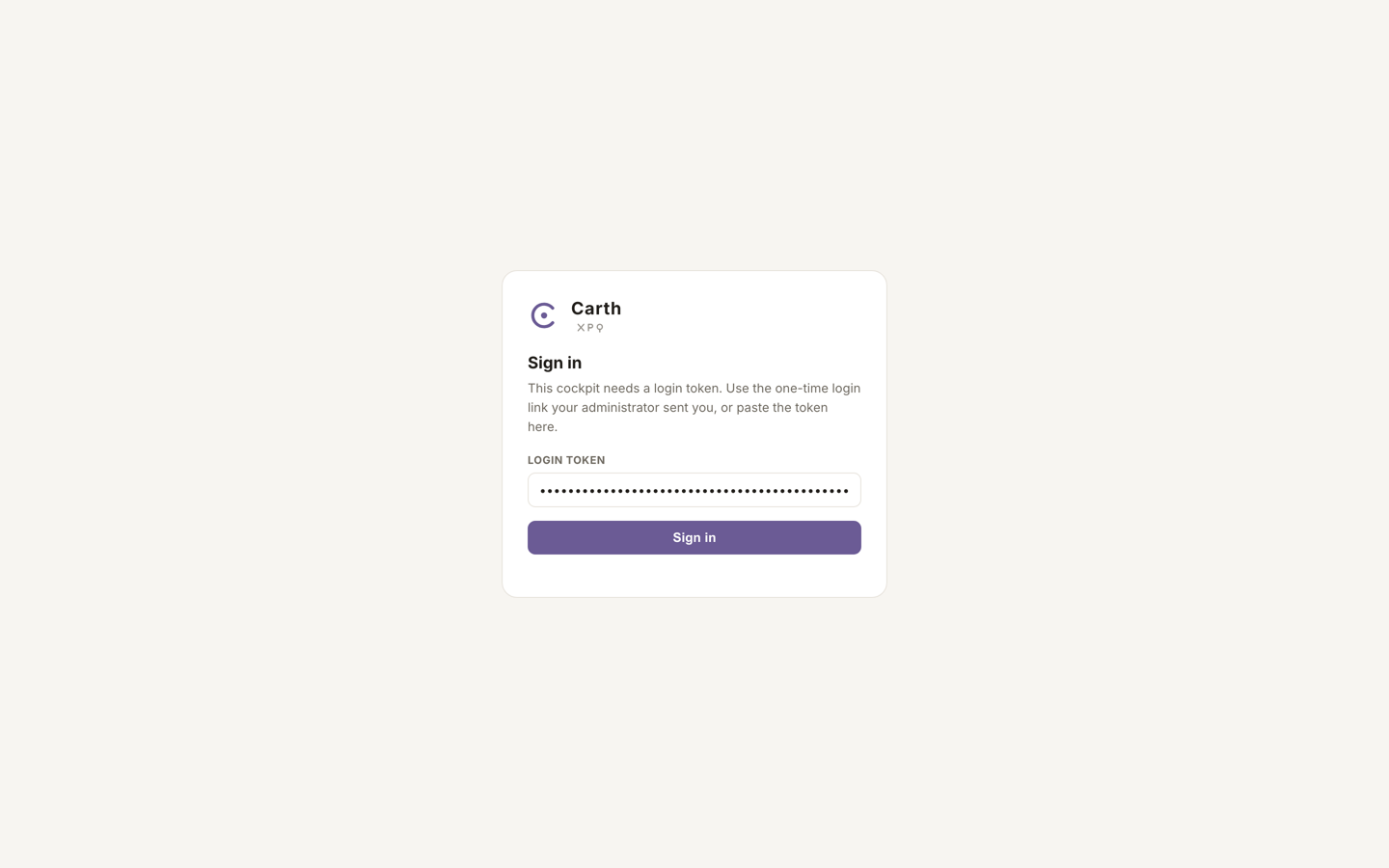
There is no shared company password. Each person on your account holds one personal sign-in link, created for them by your admin. The link carries a private token, so treat it the way you would treat a key to the office.
- Open the link you were sent. It signs you in directly and lands you on your role's own starting page.
- If you were sent the token on its own rather than a full link, open your cockpit's address, and on the "Sign in" screen paste it into the "Login token" field, then press "Sign in".
- If you lose your link, ask your admin to press "Rotate token" next to your name. That creates a fresh link and the old one stops working at once. A lost link is always replaced, never recovered: the cockpit does not keep a readable copy.
If you run the install yourself: the owner password
An install you host yourself can also carry one owner password. It exists for a single situation: you need to get in and your sign-in link is not to hand. It is not a second account and not a company password. A correct password simply hands you the same token the link would have, so there is still one credential to revoke and the audit trail still records who did what.
- Set it from the machine running Carth with
carth password <project>. The password is typed there, never sent over the network, and never kept in any form that can be turned back into the password. Nobody, ourselves included, can read it back. - To use it, open your cockpit and choose "Sign in with the owner password instead" under the token field.
- Attempts are counted and an address that keeps guessing is blocked for a while. A wrong password, an empty one, and an install with no password set all answer identically, so nothing can be learned by trying.
If you are locked out entirely, carth token <project> prints a working sign-in link. It runs on the machine itself, so it works even when the cockpit cannot be opened: a way back in that lived inside the thing you are locked out of would not be a way back in at all.
Connecting an engine
The crew runs on an engine, Claude or Codex, and Carth resells neither: you connect your own. There are two ways in, and the setup step offers both.
- A subscription you already pay for. If you already have Claude or ChatGPT, you do not need an API key. You run one command on your own computer, approve it in the browser it opens, and it hands you a value to bring back and paste into the cockpit. The commands are the vendors' own, public tools:
claude setup-tokenfor Claude,codex loginfor Codex. - An API key. Paste the provider's key instead and usage is metered to your account there. Carth prefers a subscription when one is connected, so a key can stay saved and unused.
The round trip looks like an extra step, so it is worth saying why it exists. Signing in to either vendor needs a browser on the same machine that runs the command, and your cockpit is usually somewhere else entirely. Running it where you are sitting is the supported path rather than a workaround, and there is no in-cockpit button that could honestly replace it.
Whatever you paste is stored the way every other credential is: write only. The cockpit will confirm that it exists and will never show it back, to you, to another user, or to an agent. Which engine each role in a mission runs on is a separate choice, covered in spending and budgets.
Inviting your team
Adding people is done by your admin, in the Users area of the cockpit. A seat is a person, not an agent, and your plan decides how many seats you have: see your account and plan.
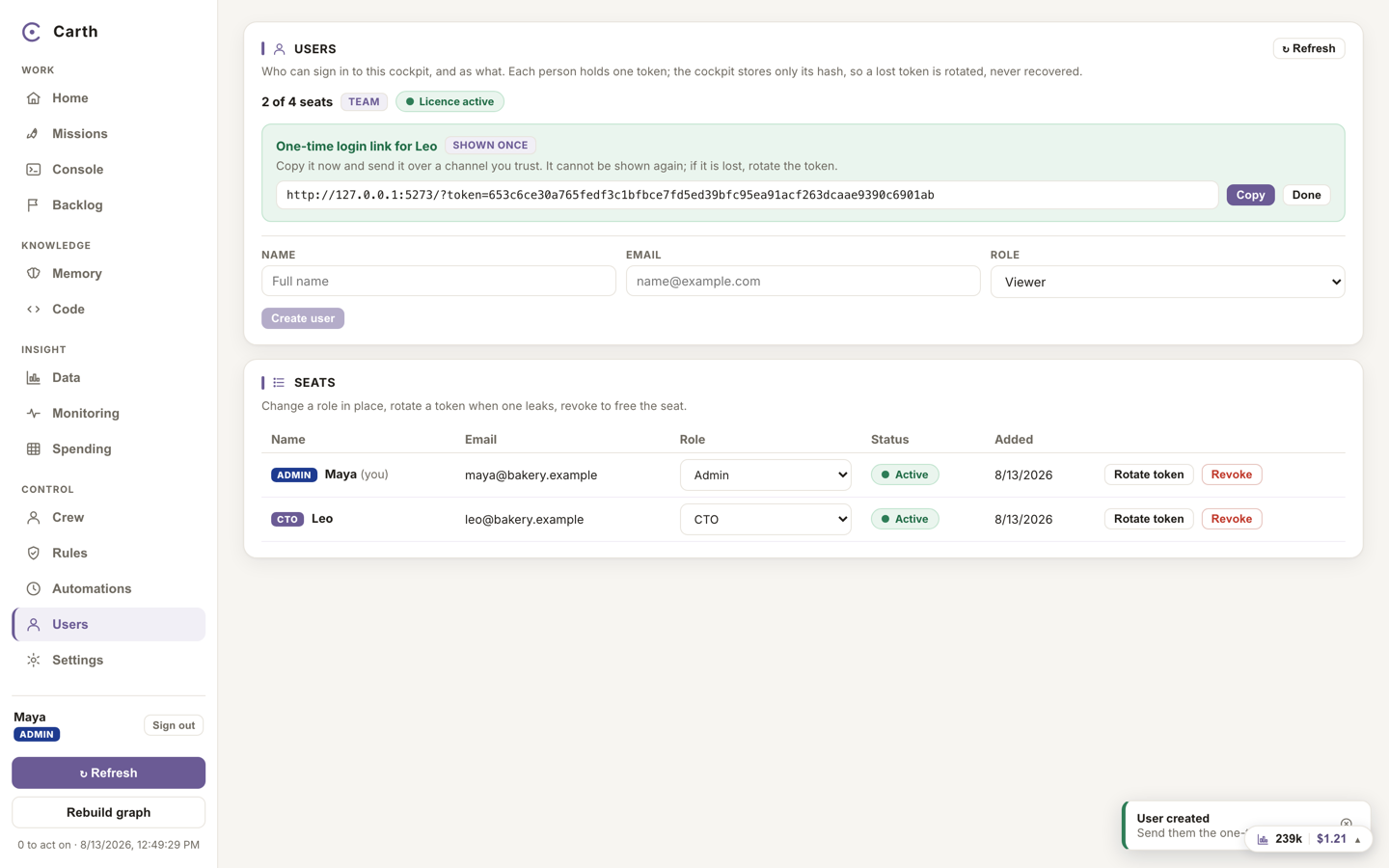
- Open Users from the sidebar, under Control. Only an admin sees it.
- Fill in the person's name and email, choose their role, and press "Create user".
- The cockpit shows their one-time login link exactly once. Press "Copy" and send it over a channel you trust. It cannot be shown again; if it is lost, rotate the token for a new one.
- To change what somebody may do, change their role in place. To remove somebody, press "Revoke": their session ends immediately, their seat is freed for someone else, and everything they approved stays in the record under their name.
The five roles, and what each sees
A role decides two things: where that person's cockpit opens, and which decisions are theirs. The rights are enforced on the server, so hiding a button is a courtesy and never the actual protection.
| Role | Opens on | What is theirs to decide |
|---|---|---|
| Admin | Home, the queue of things waiting on a decision | Everything, including users, keys, settings and limits |
| CTO | Home, the same queue plus what the crew is doing now | Reviews any mission, and holds the ship gate: merging and promoting to production |
| CFO | Spending | Budgets and spending settings, plus the review gate on missions they filed themselves |
| Marketing | Missions | Files missions and approves the review gate on their own, and nothing beyond them |
| Viewer | Home | Nothing. A viewer reads everything and can change nothing, anywhere |
Everyone signs out from the cockpit as normal; signing out clears the remembered page, so the next person on that machine lands on their own starting page rather than yours.
Next. With your account in place, the first real step is pointing Carth at your code: connecting your repository.